On the different pages there is an info box that describes and guides the different modules (click the Plus sign).
Create a team profile and get started with registration for HSK events.
Note that it takes 2 steps to sign up!
1- First, boxers, leaders or judges are created in the team.
2- After this, registration and options can be made together and for the individual.
If you need help, you can write to: support@hskboxcup.dk
Guides and FAQs
To create a new profile, use the buttons in the side menu, on the right.
– Click on “create new profile”.
¤ New page opens “New Team profile”.
– Fill in all fields and click the “Send activation code” button at the bottom.
¤ An email is sent from the system, to the provided email address with an activation code, and the page switches to profile activation.
¤ You can also access profile activation, by using the buttons in the side menu.
– Insert email address and activation code and click “Activate profile”.
¤ If the code and email are correct, the profile is now activated and the page switches to login.
¤ You can also get to the login page by clicking on team in the top menu or by using quik login/out in the side menu on the right.
– Enter the email address and the selected password and click on the “Log in” button.
¤ The first time you log in, the profile must be completed with data and details about the team. all fields marked with * must be completed, as well as conditions must be approved.
– After filling in, click on the “Save/Go back” button.
¤ The page changes to the Team page, which is the starting point and overview of the profile. You can always return to this page using the “Team profile” button in the side menu.
-The profile is now ready to have members added (boxers, managers, referees and team users), this is done using the buttons in the side menu.
– Click on team in the top menu.
¤ Page for login opens.
– Click on the “Forgot code/password” button at the bottom.
¤ New page opens for new code/password.
– Enter the profile’s email address and click on the “Send new code/password” button at the bottom.
¤ If the email is correct, another email will now be sent, but with a one-time code.
– Go to the log in page and log in with email and the one-time code.
– Then go in and edit the team profile and choose a new password.
Please note that the code sent can only be used once!
¤ New page opens with list of boxers in the team.
– Click the “Add” button to the top.
¤ New page opens with fields for input.
(Be thorough and enter correct data)
Gender: Male/Female
Fightbook no.: ID-number of fightbook (primarily Danish books)
First name: First name and middle name
Surname: Surname.
Date of birth: Date of birth (important) “Dateformat day-month-year” .
Weight: Weight in Kg. with 1 decimal place
Diploma matches/Skill fights : Number of diploma matches.
Matches: Number of matches (also remember to list matches, that are not in the current figthbook/boxer pass)
Won: Number of matches won
Lost: Number of games lost.
Other relevant information in relation to matching: The field is for information about other martial arts and combat
experience and/or titles and championships.
You must take this into account and add data where relevant, otherwise this will not be filled in.
Especially if it is information that does not appear in match books/boxing pass.
-Click the “Save” button at the bottom.
¤The page switches back to the overview of boxers and the boxer is now added to the team.
NOTE!
Boxer is not registered/enrolled for an event at this registration.
This is done in a separate step, where one or more from the team can register/enrol for an event.
If data has not been updated within the last month, it is not possible to select this box during registration step 2.
Here, a red square with a pencil is shown instead.
Even if there are no changes, data must be saved/updated and thereby confirmed.
If a boxer is not updated, this will appear on the Team page.
– Go to boxers in the module menu on the right.
– Find Boxer in the list and click the edit button (pencil) on the right.
– Correct if necessary data og just cofirm.
-Click “Save/update” at the bottom.
NOTE!
Data in active registrations is also updated, but only up to the registration deadline.
The user can create/update members and register members for events, if the team manager has given this permission.
When the user is created, the system sends an email to those involved about the creation, username is this email and password must be provided by the team administrator (default is set under team settings).
When the Team user log in, he/she must change the default password to his/her own code.
Note that a team user cannot be created with an email address that is already in the system (team admin or user).
– Click on the button “Create enrolment/sing up” at the bottom of the section for Enrolments/registrations (grey box).
¤ New page for registration opens, and you now have to go through 4 steps.
1- Select event and click on “Create enrelment/sign up”.
2 -Select the members of the team to be registered and click on the “Next step” button.. Note: boxer data has to been updated within the last month.
3- Make options that are available for current event, for the individual members and click on “Next step”.
4- Review registration, read and accept terms and conditions and click “Send enrolment”.
Registration has now been submitted.
More members can be enroled/registered and registrations corrected until the registration deadline.
NOTE!
After the registration deadline, the data for those registered, will be locked and registration is binding.
Please also note that boxers can only register if data is updated, i.e. updated within the last month.
-Member is not created correctly in the team (check if member is part of the team)
-Member is already registered for the selected event.
-If the boxer’s data has not been updated within the last month, this must be done first, even if there are no changes.
Boxes are updated/data is confirmed, by editing the relevant boxer, possibly correct data and click save at the bottom
On the Team profile main page, active Enrolments/registrations can be seen in the gray box as shown here.
These are valid registrations and the place is hereby reserved for the registered members.
Registrations can, however, be changed until the registration deadline, after which no data can be added or changed and registration is binding.
If there are no events in the gray box for registrations, there are no active registrations!
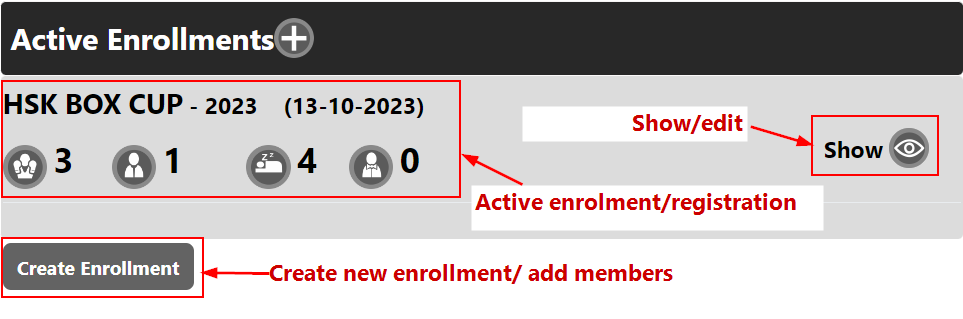
As registrations up to the deadline can be changed, the system does not automatically send receipts, as it has previously caused confusion with multible emails.
However, you can press show on the right side of active registration (Show and edit) and at the bottom you can send a receipt by mail .
At the end of the registration deadline for the event, an overall invoice will be sent to the team responsible.
Payment must be made as a single payment, we cannot receive partial payments from different people and keep track of this for the individual teams.
Payment are made via bank transfer.
Entries are based on the following.
Under the team profile in the section for registrations (grey box) there is a button (eye) on the right side for each active event with registrations.
By clicking on this, the following changes can be made per member.
-Delete/remove member and thereby registration.
-Remove or add options for individual members.
If data for members needs to be corrected, e.g. weight etc. bouts, this is done by editing the member in the team.
These changes will affect registrations as well, but only until the registration deadline.
